 Forma3D
Paint individual faces
Select a face and assign a palette slot. Brush, rectangle, and circle workflows help cover larger areas on a touch screen.
Forma3D lets you assign palette colors to individual mesh faces or connected regions, then export a 3MF file containing per-face color data for compatible multi-filament print workflows.
Guide updated October 24, 2026 · Published by Forma3D · iPhone and iPad · Check the App Store for the latest release
View Forma3D on the App StoreSelect a face and assign a palette slot. Brush, rectangle, and circle workflows help cover larger areas on a touch screen.
Flood Fill follows connected faces and can stop at sharp dihedral-angle boundaries, which is useful for buttons, panels, and hard-surface parts.
Auto Paint segments a mesh into regions using connectivity and surface direction, then assigns available palette colors.
Metal color buffers allow many paint changes to update without rebuilding the complete geometry. Performance depends on mesh complexity and the device; test the export and paint workflow on your own model.
See the hands-on walkthrough: How to Paint for 3D Printing — painting faces, cleaning up color islands, and merging similar colors to a target count.
Import an STL or 3MF, paint the faces you want to print in different filaments, verify the model in the viewport, and export a 3MF for the next step in Bambu Studio, Creality Print, or another compatible slicer workflow.
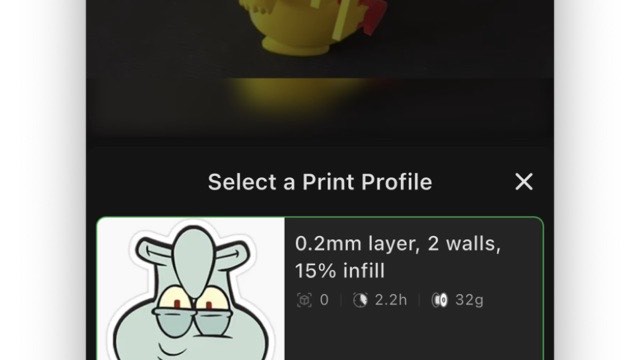
3MF is a modern 3D-printing format that stores mesh geometry plus colors, materials, units, and print metadata in one file — unlike STL, which is geometry only.
Yes. Forma3D lets you paint mesh faces with palette colors and export a colored 3MF on iPad or iPhone, ready for a multi-filament slicer or Bambu Handy.
Use 3MF. It preserves per-face color assignments and units; STL would discard the color data entirely.