 Forma3D
How to print from iPhone without Bambu Studio
No desktop computer needed. Create a model in Forma3D, export a Bambu-ready 3MF file, upload it to MakerWorld, and send it to your Bambu Lab printer from Bambu Handy — all from your iPhone or iPad.
Guide updated September 7, 2026 · iOS 17+ · Compatible Bambu Lab print profiles
What you need
Forma3D app
iPhone or iPad with iOS 17 or later. Free to download with in-app purchases.
Bambu Handy app
Free app from the App Store. Connects your phone to the printer.
MakerWorld account
Free at makerworld.com. Stores your model with print settings.
Bambu Lab printer
Any model (A1, A1 mini, P1S, P1P, X1 Carbon, etc.) linked to your Bambu account.
The workflow in 7 steps
Open your model in Forma3D
Start the Forma3D app and open the model you want to print. It can be a model you created in the app, imported from Files, downloaded as STL, or scanned with LiDAR.
When the model is ready, tap the Export button at the bottom of the screen. You will see export options.
Choose "Export 3MF (Bambu)"
From the export menu, select Export 3MF (Bambu). This format contains your 3D model plus the print settings that Bambu Handy needs.
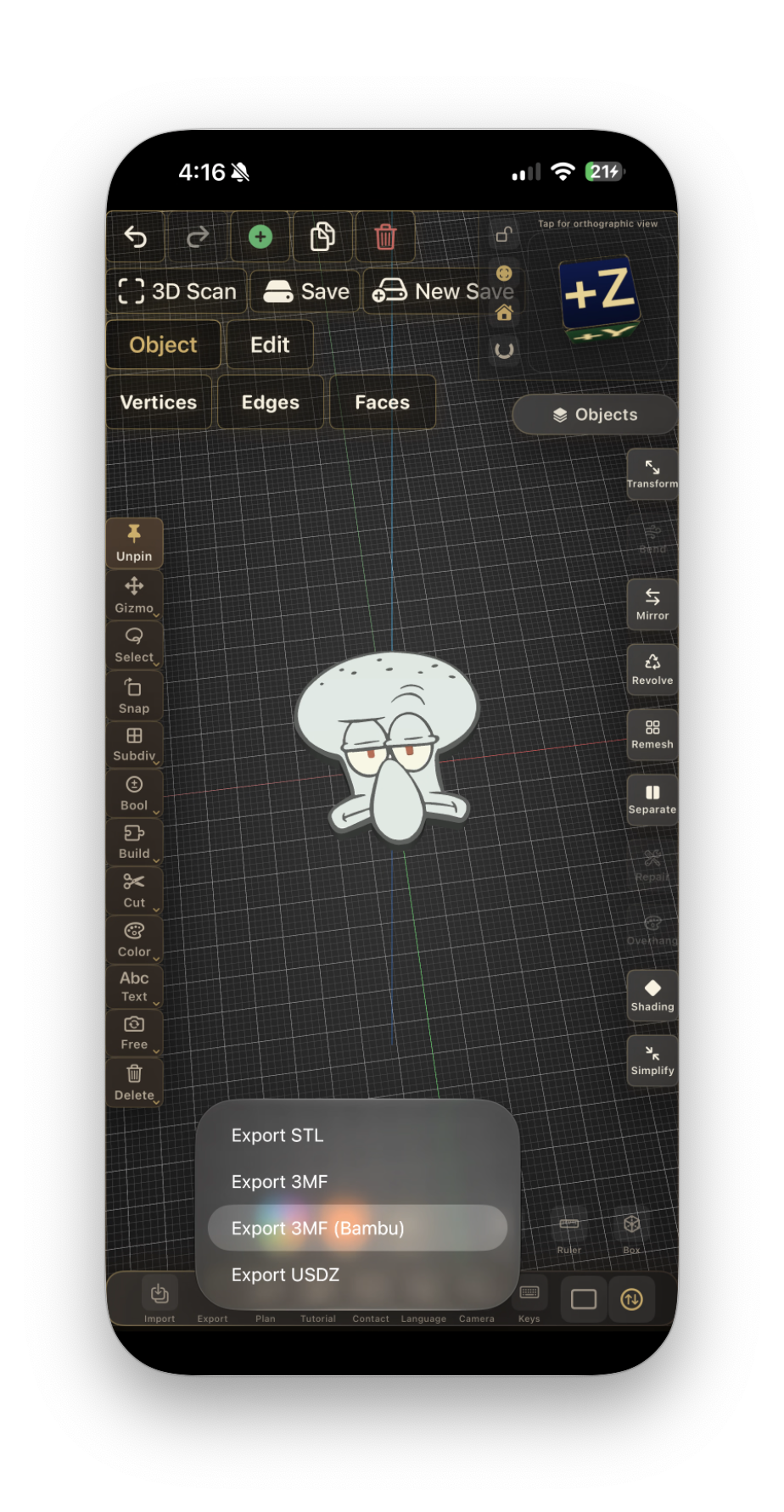
Tap Export 3MF (Bambu) to save a printer-ready file.
Set your print settings
Forma3D opens the print profile screen. Most options already have good defaults. Here is what they mean in simple terms:
- Printer Model — choose the Bambu printer you own (for example, P1S, A1, or A1 mini).
- Nozzle — 0.4 mm is the standard nozzle that comes with most Bambu printers. Leave it unless you changed the nozzle.
- Layer Height — 0.20 mm is a good balance between speed and quality. Lower values look smoother but take longer.
- Infill Density — 15% is fine for decorative models. Use more for stronger functional parts.
- Enable Support — turn on if your model has overhangs or bridges.
- Bed Type — choose the plate you are using (for example, Textured PEI Plate).
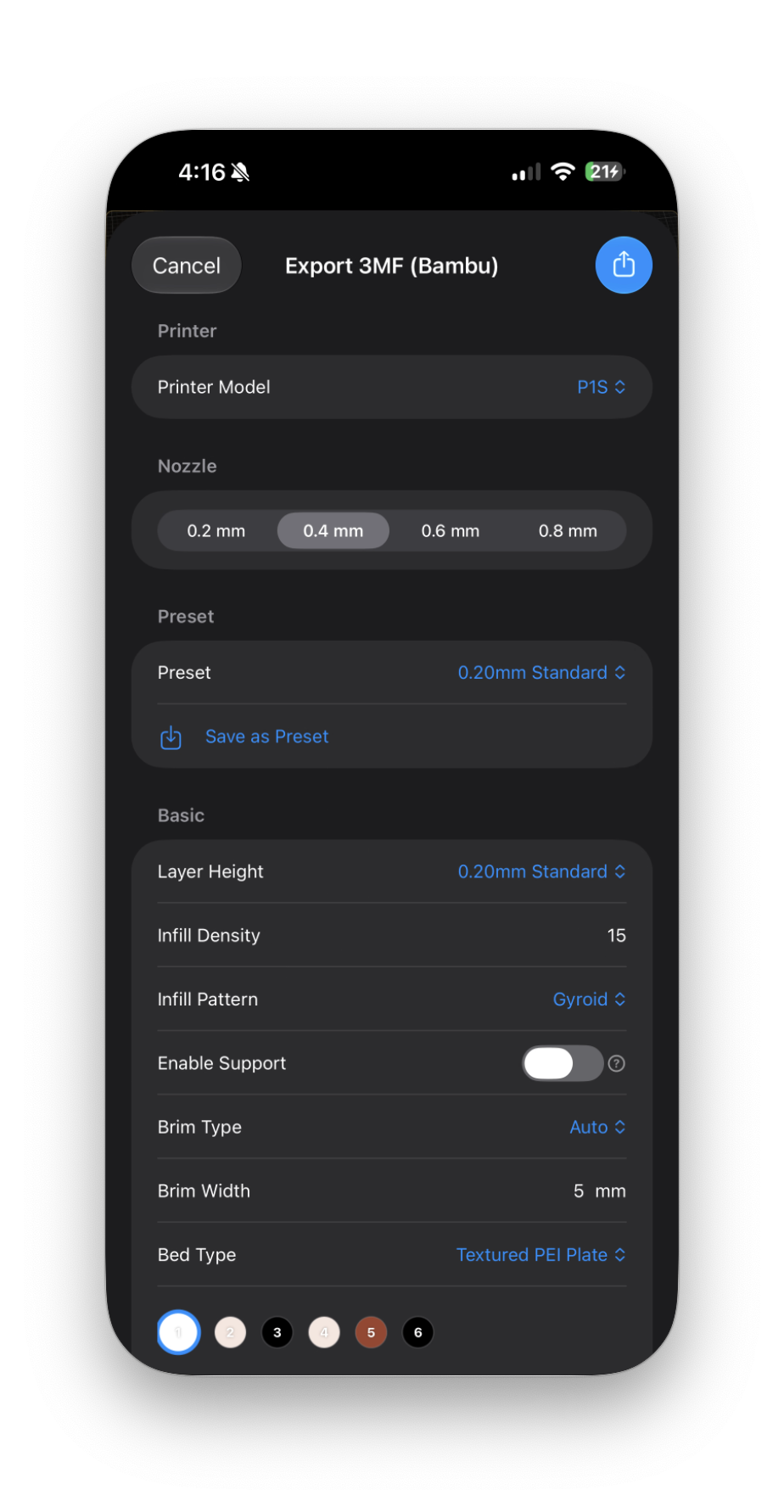
Choose your printer, nozzle, layer height, and other settings.
Upload the file to MakerWorld
Open Safari on your iPhone, go to makerworld.com, and sign in. Tap the upload button to start a new upload.
On the first screen, MakerWorld will ask: "Do you have a Bambu Studio file(.3mf) for this model?" Select:
✅ Yes (earn extra points reward)
Then tap Browse in the "Bambu Studio File (Print Profile)" area and select the .3mf file you just exported from Forma3D.
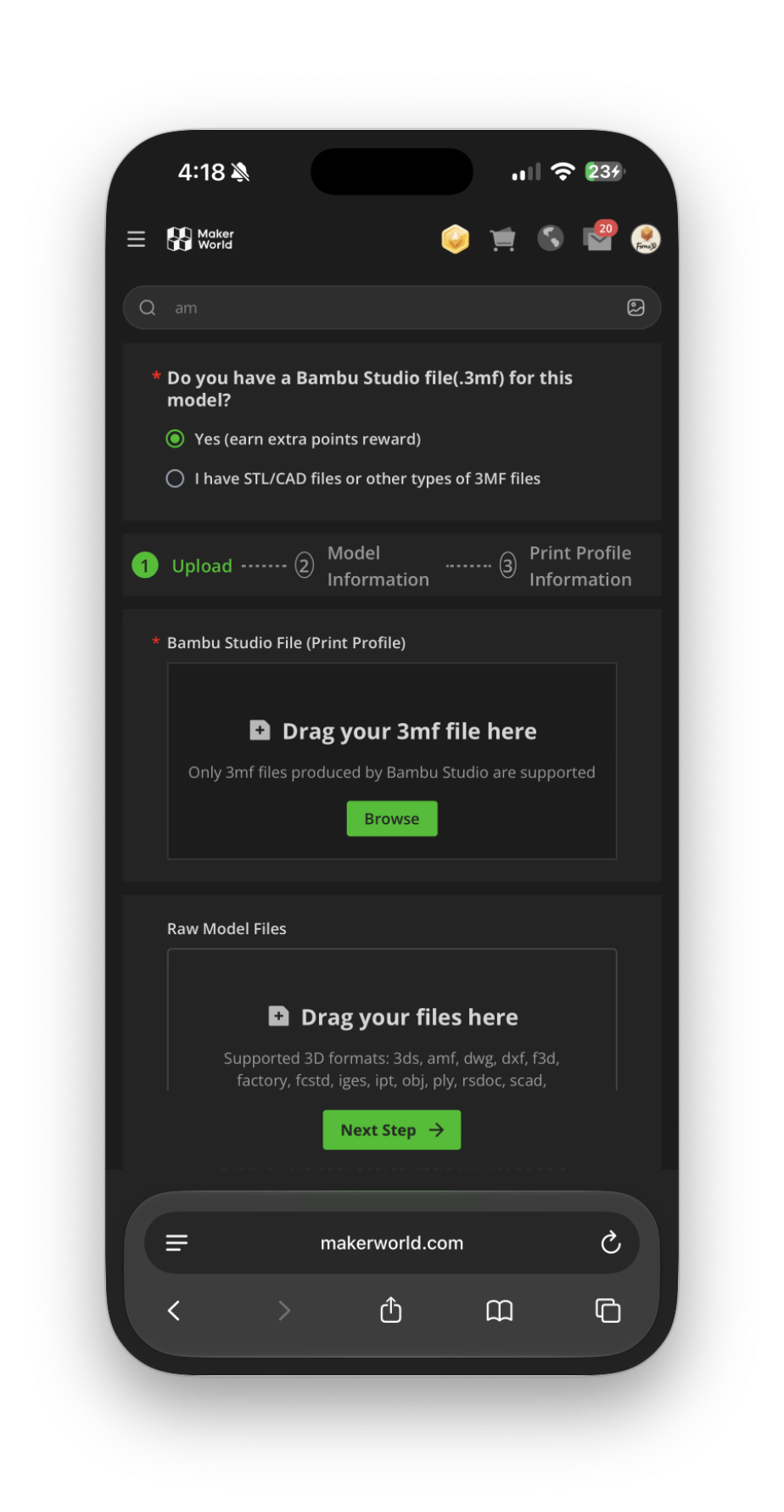
Select Yes and upload your .3mf file.
Fill in model information
MakerWorld will move to the Model Information step. Here you add the public details of your model:
- Model Name — give it a clear name, for example "Squid".
- Model Cover — use an accurate image of the model you are uploading and follow MakerWorld's current image requirements. If a real print photo is required, photograph that printed model. Do not substitute a photo of an unrelated object. If you cannot meet the publication requirements, keep the file local and use a compatible slicer workflow instead.
- Category — choose a category, for example "Test Models".
- License — select terms that match the rights you hold and the permissions you want to grant. A public upload is not private storage; do not publish someone else's design without permission.
Tap the green Add Print Profile → button to continue.
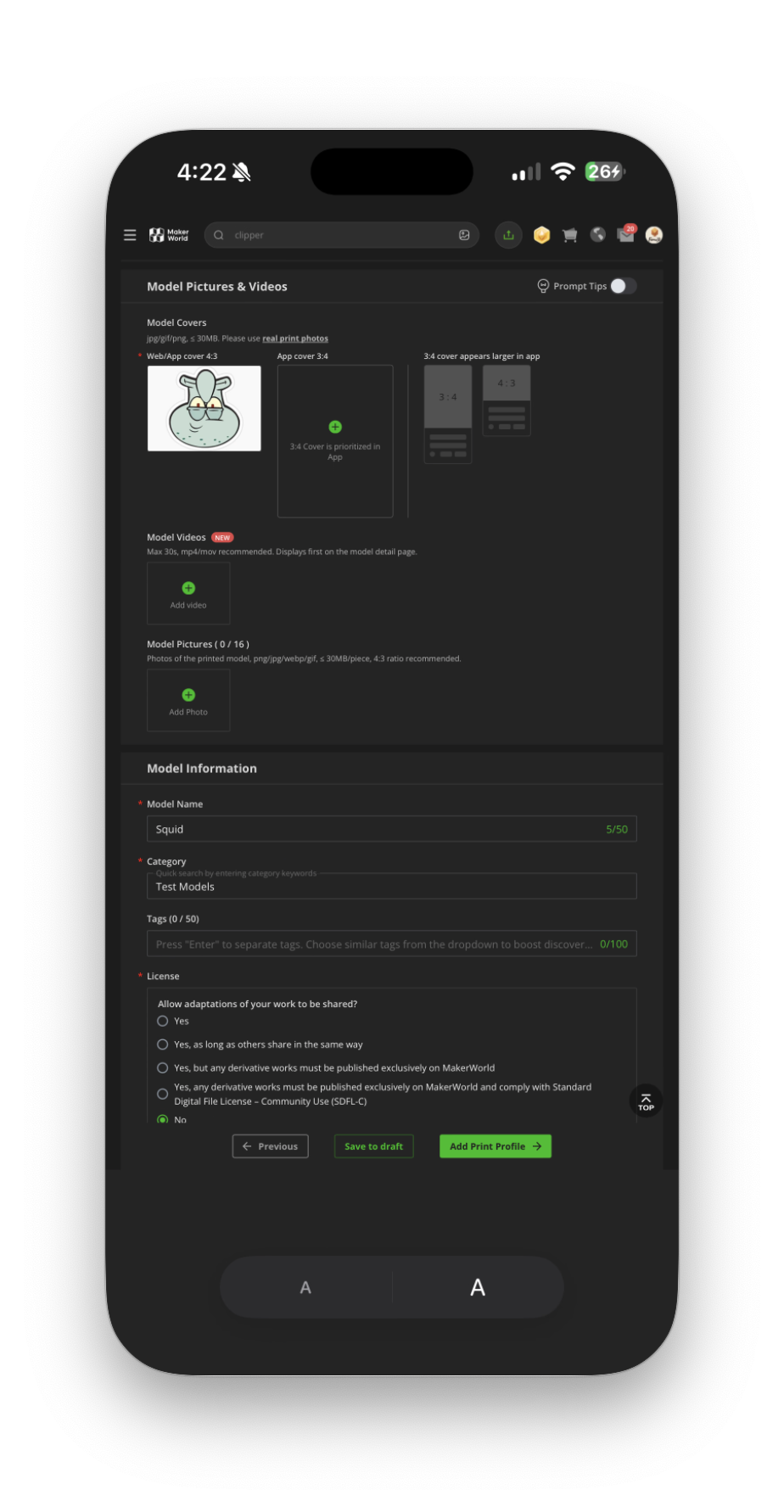
Add a name, choose a category, then continue to the print profile.
Publish the print profile
On the Print Profile Information screen everything is already filled in for you. The 3MF file from Forma3D carries the print profile name and settings, so you don't have to type anything. Just do the following:
- Confirm the Squid.3mf file is attached at the top.
- Check that the print profile name is filled in (for example "0.2mm layer, 2 walls, 15% infill"). If it is empty, enter it manually.
- Read and check the Print Profile Guidelines checkbox.
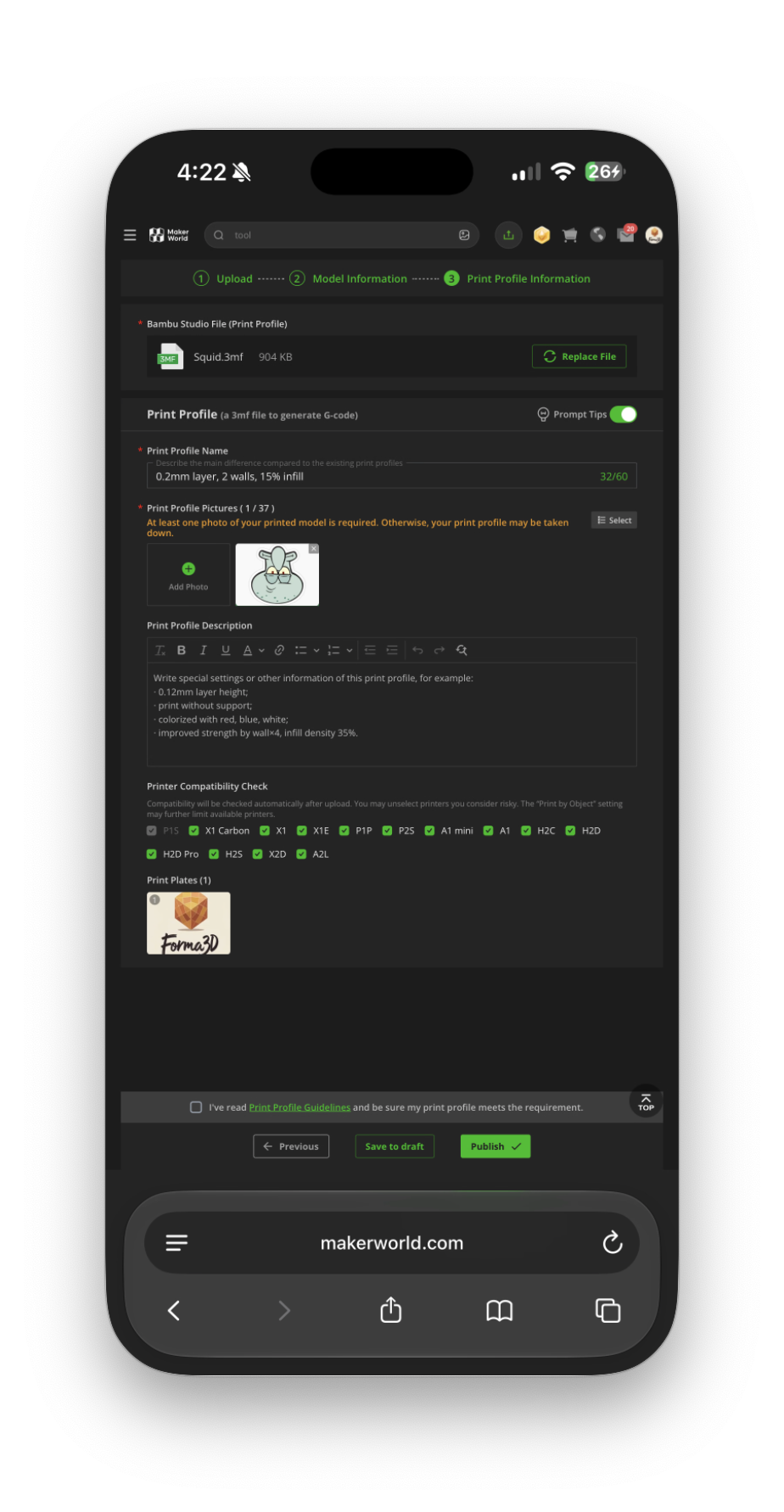
Fill in the profile name, add a picture, then tap Publish.
Tap Publish. MakerWorld will process your model. This usually takes a few seconds, but large files may take a minute.
Send to print from Bambu Handy
Now open the Bambu Handy app on your iPhone. Find your published model on MakerWorld and open it. You will see the print profile you just created.
Tap the print profile (it shows your chosen settings — nozzle, layer height, walls, infill, and filament weights), then tap Next.
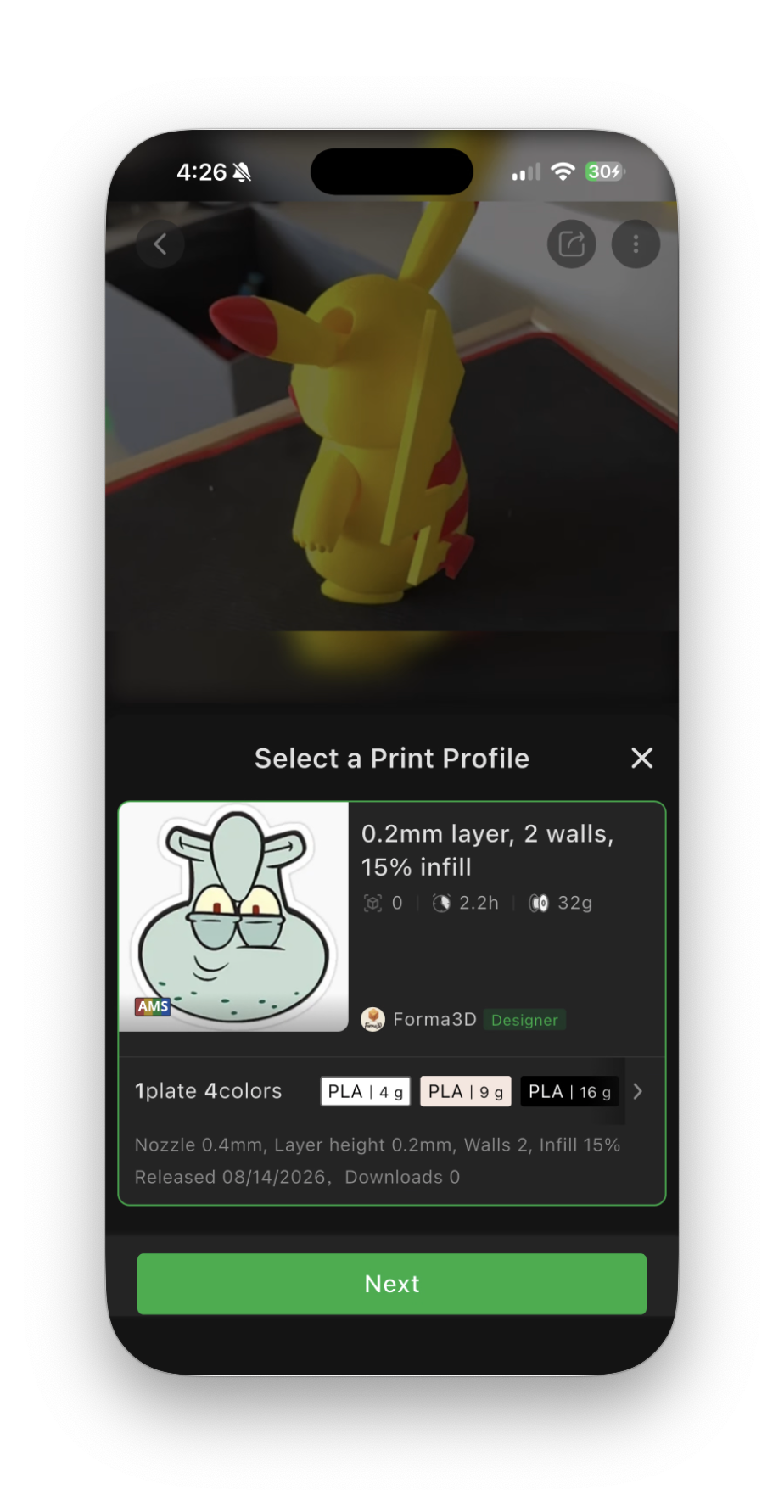
Select the print profile in Bambu Handy and tap Next.
Choose your connected Bambu Lab printer and start the print job. The printer will begin automatically — no Bambu Studio required.
Why this works
Bambu Studio is a desktop slicer, but the 3MF file format can store print profiles inside it. Forma3D writes these profiles when you export, so MakerWorld and Bambu Handy can use them directly.
3MF carries the settings
Printer model, nozzle, plate type, filament, and colors are embedded in one file.
MakerWorld reads the profile
The "Yes, I have a Bambu Studio file" option tells MakerWorld the file is already configured.
Bambu Handy sends the job
The mobile app reads the profile and sends it to your printer over the cloud.
No desktop needed
The whole pipeline runs on iPhone or iPad with Forma3D, Safari, and Bambu Handy.
Tips for best results
- Pick the right printer model in Forma3D's export dialog. The profile must match your actual printer.
- Check your model size before exporting. Use Forma3D's measurement tools to set exact dimensions in millimeters.
- Use supports for overhangs if the model has parts floating in the air. Enable support in the export settings.
- Match filament colors if you painted the model. The color circles in the export screen represent the AMS slots in Bambu Handy.
- Make sure your printer is online and linked to the same Bambu account you use in Bambu Handy.
- Large files need more time on MakerWorld. If the model page does not open immediately, wait a minute and refresh.
Frequently asked questions
Can I print an STL file directly from Bambu Handy?
No. Bambu Handy is not a slicer and cannot turn STL into G-code. It needs a 3MF file with a print profile. Forma3D creates that 3MF for you.
Do I need a desktop or Bambu Studio?
No. The entire workflow shown above uses only Forma3D, Safari, and Bambu Handy on your iPhone or iPad.
Do I need to publish my model publicly?
No. MakerWorld lets you choose public or private visibility when you publish. For personal printing, choose Private — only you can see and print the model through Bambu Handy. A private model still works exactly the same way for printing.
Which Bambu printers work?
Forma3D includes profiles for A1 mini, A1, A2L, P1S, P2S, P1P, X1 Carbon, X2D, H2S, H2D, H2C, H2D Pro, and more. Any Bambu Lab printer connected to your account works with Bambu Handy.
Start printing from your phone
Download Forma3D, create or import a model, and send it to your Bambu Lab printer without opening a desktop slicer.
Get Forma3D on the App Store