Bambu Handy can't open raw STL files — but the complete iPhone-to-A1/X1C/P1S workflow exists. Here's the real path, including the profile quirks nobody warns you about.
Updated November 9, 2026 · Published by Forma3D
Bambu Handy is the printer-side app: it manages printers, monitors jobs, browses MakerWorld, and fires off prints — with slicing happening in the cloud. What it does not do is open a raw STL from Files or Mail. To get your own model in, it has to become a MakerWorld model first — which is exactly what the private-upload path is for.
Get the model print-ready on-device: import STL/3MF in Forma3D, repair if broken, resize, split if oversized, then export to Files. Clean geometry now means clean cloud slicing later — MakerWorld rejects or mangles broken meshes unpredictably.
In the MakerWorld app (or makerworld.com in Safari), create a new model → upload your STL/3MF → set visibility to Private. Full walkthrough: upload to MakerWorld from iPhone. Private models never appear publicly — it's just your staging area.
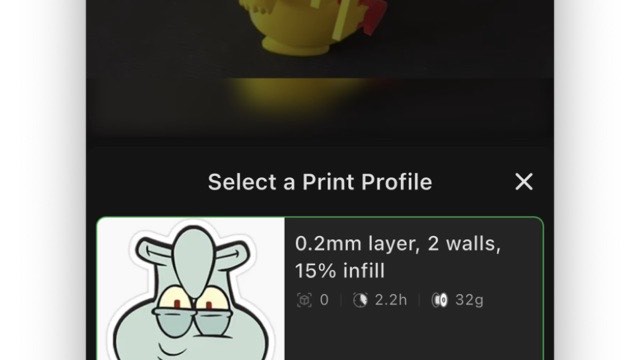
Open Bambu Handy → your model appears under your MakerWorld account → pick your printer (A1, X1C, P1S, A1 mini) and nozzle → cloud-slice → Print. Check the filament mapping if the 3MF carries colors; AMS slots auto-assign but verify before committing a long job.
Send STL to any 3D printer — Prusa, Creality, OctoPrint paths too.
Upload to MakerWorld from iPhone — the private-model step in detail.
Slice on iPhone or iPad — when you want local control instead of cloud.
No — Bambu Handy doesn't import raw STL/3MF files from your phone storage. The mobile path is MakerWorld: upload the model as a private model, then it appears in Bambu Handy where cloud slicing handles the rest.
Yes. Print profiles are per-printer, but Bambu Handy can re-slice with your selected printer and nozzle when the model has no matching profile — or pick 'Generic' settings. Watch the filament and bed-type warnings; profiles tuned for a different printer may need temperature or speed tweaks.
That warning appears when the 3MF carries project settings (from Bambu Studio or another tool) that conflict with the printer/profile selected in the app. The app re-slices with its own defaults for your printer — your model geometry and colors are unaffected, but custom speeds/temperatures from the original file get reset.
Not directly — printers need sliced G-code, and MakerWorld accepts mesh formats (STL/3MF/OBJ), not STEP. Convert STEP to a mesh first: Forma3D imports STEP on iPhone/iPad, exports STL or 3MF, and then the MakerWorld → Bambu Handy path works normally.
Available on iPhone and iPad
 Forma3D